The Dreamlink T1 and T2 are devices that grant access to IPTV channels. They include a user interface based on the Stalker Middleware, an interface that is intended to convert these online channels into a menu from which you can simply select which channel you require to watch.
Basically, these merchandises make it simpler for you to see the numerous channels that are on offer and pick whichever one catches your imagination. The user interface also includes a web browser, video player, and a mixture of other apps.
In order to add channels to your Dreamlink device, follow the below steps:
STEP 1:
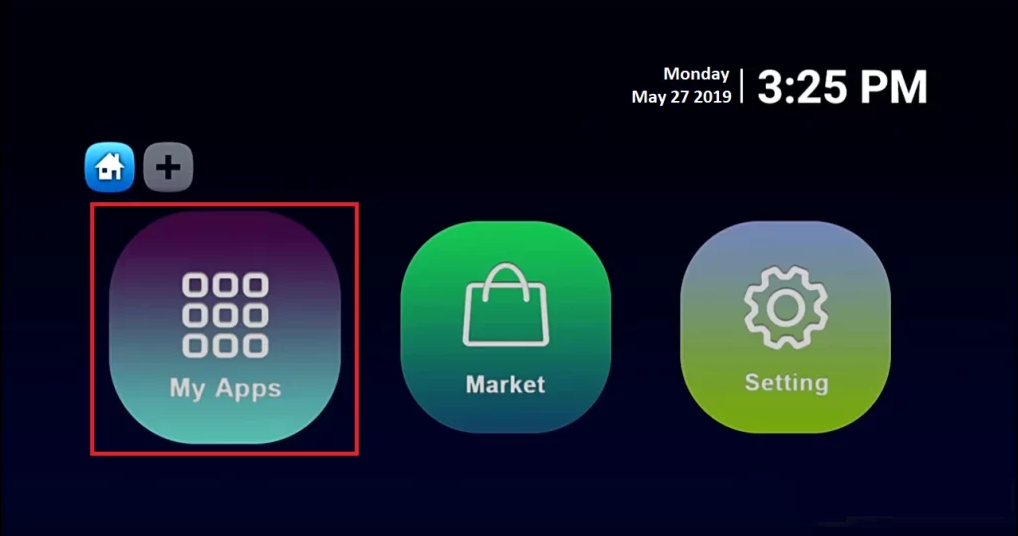
From the main page, go to “My Apps“.
STEP 2:
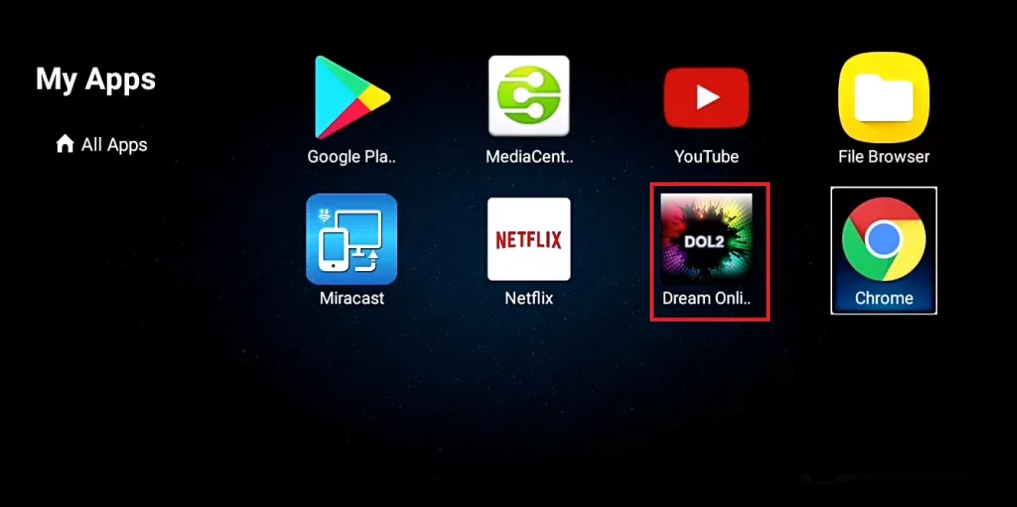
Select DreamOnline (DOL 2). Note, If the DreamOnline (DOL2) app is not in the My apps folder go to the Market folder, find DreamOnline (DOL2) and install it. After that, it will appear in the My apps folder/
STEP 3:
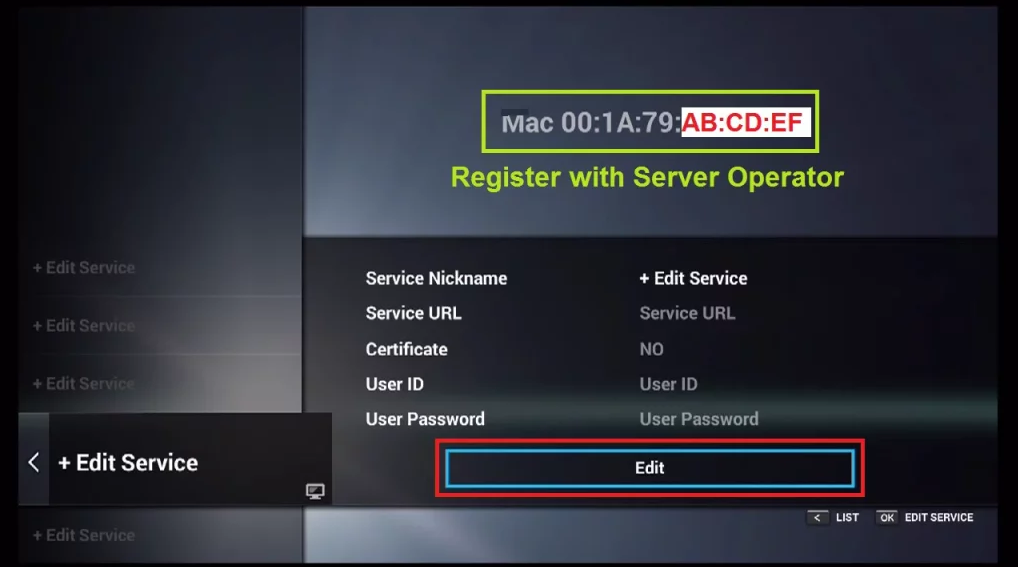
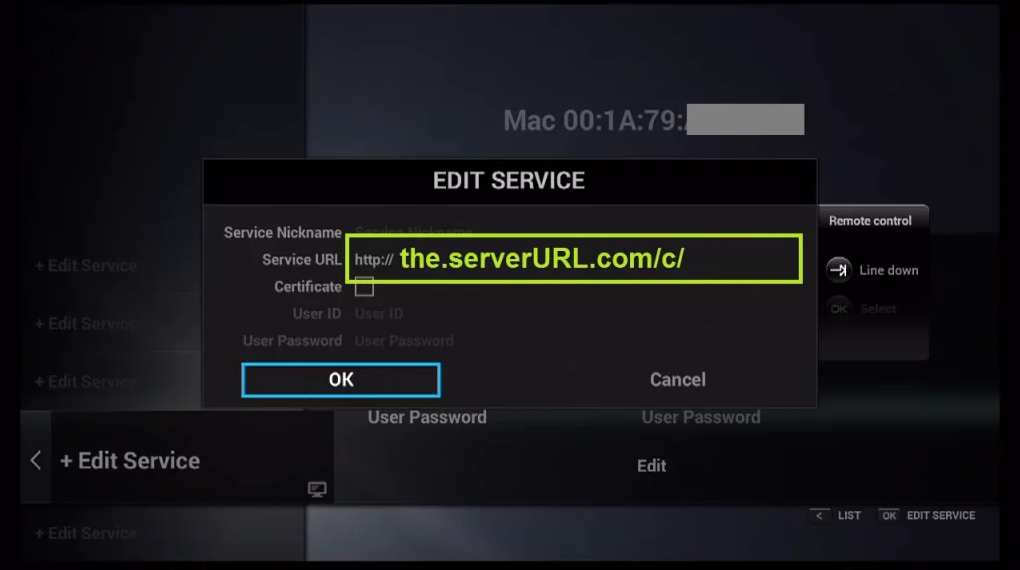
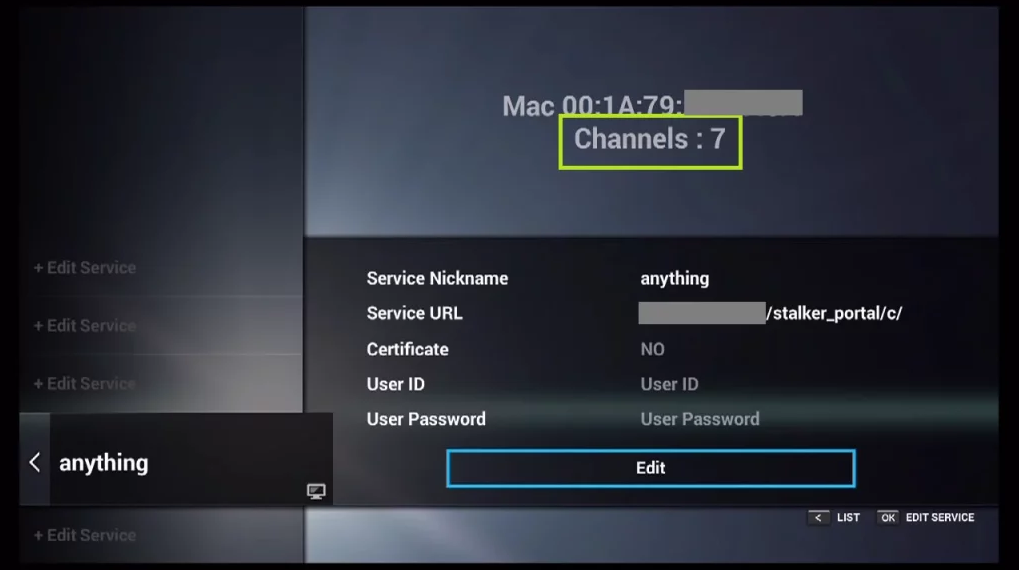
Now select “Edit Service” and then click on “Click Edit“. Important: Be sure you register on (Server Operator Homepage) with your right MAC Address (if necessary).
STEP 4:
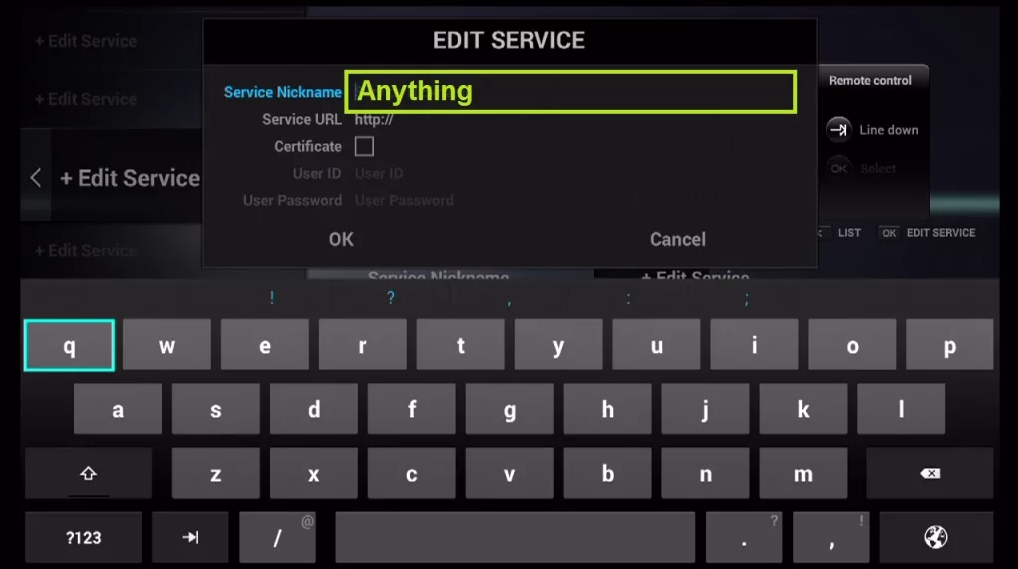
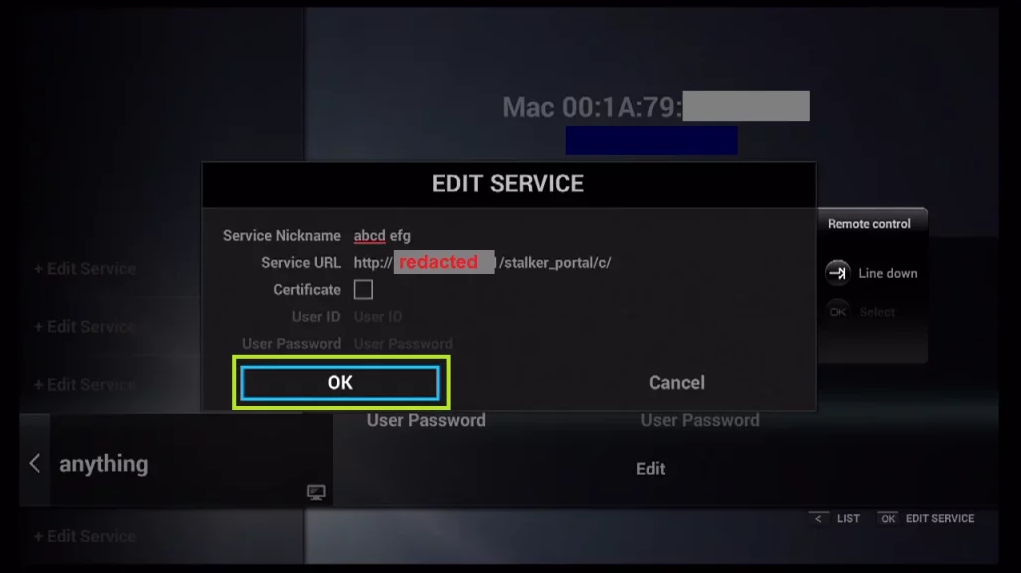
Enter Service Nickname (Any name).
STEP 5:
Enter the IPTV Server URL (Portal URL) you get from your IPTV service provider.
STEP 6:
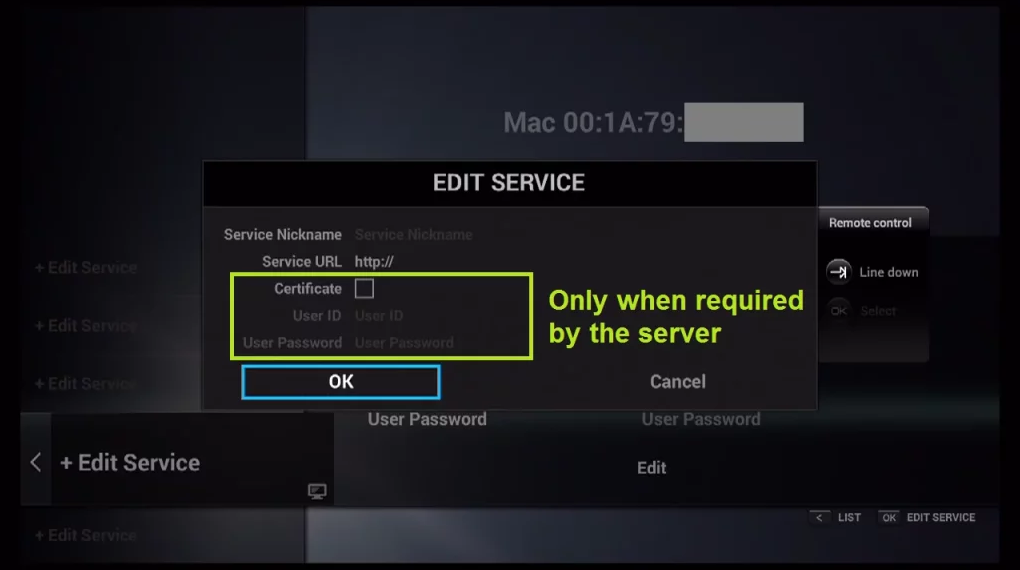
It is NOT necessary to enter the Username and Password.
STEP 7:
Click “OK“.
STEP 8:
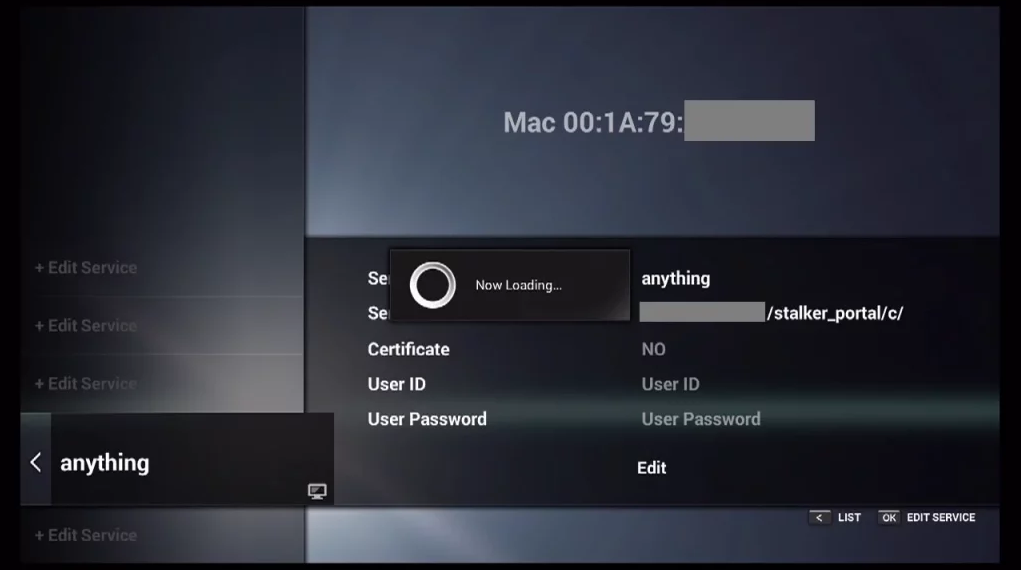
Connecting to IPTV Server (with your registered data) in progress.
STEP 9:
Successful Connection! You receive all channels associated with your account.
1- Click here to download Smarters PRO then install it.
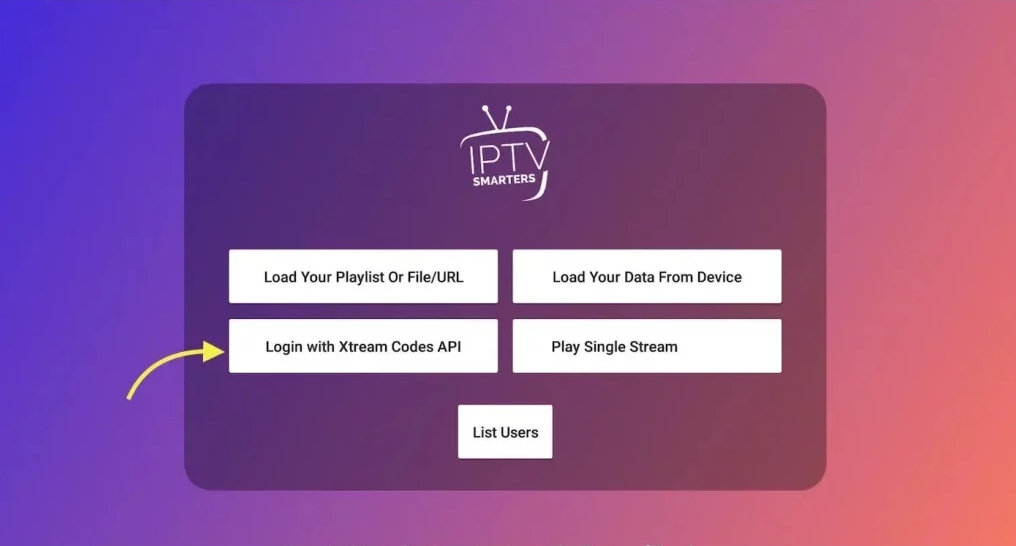
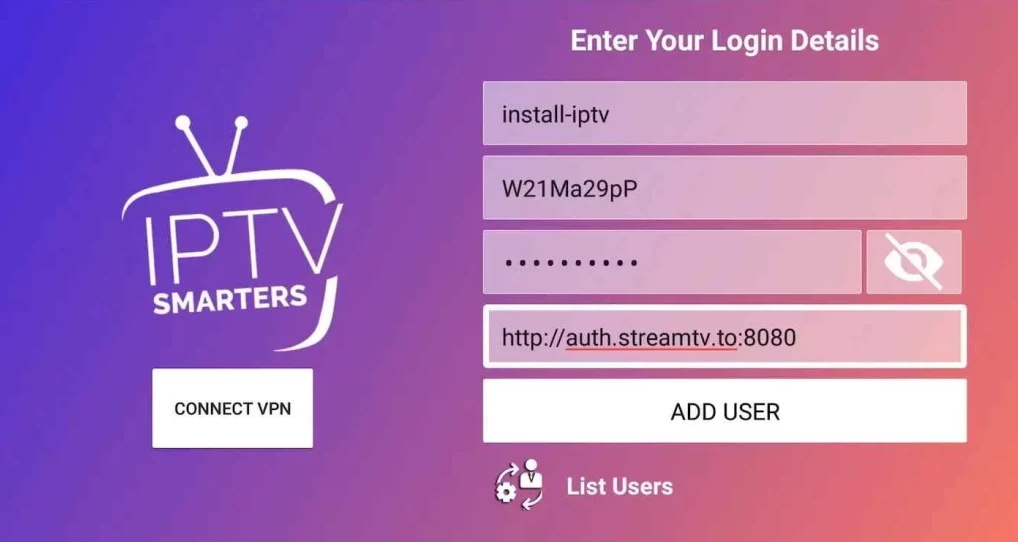
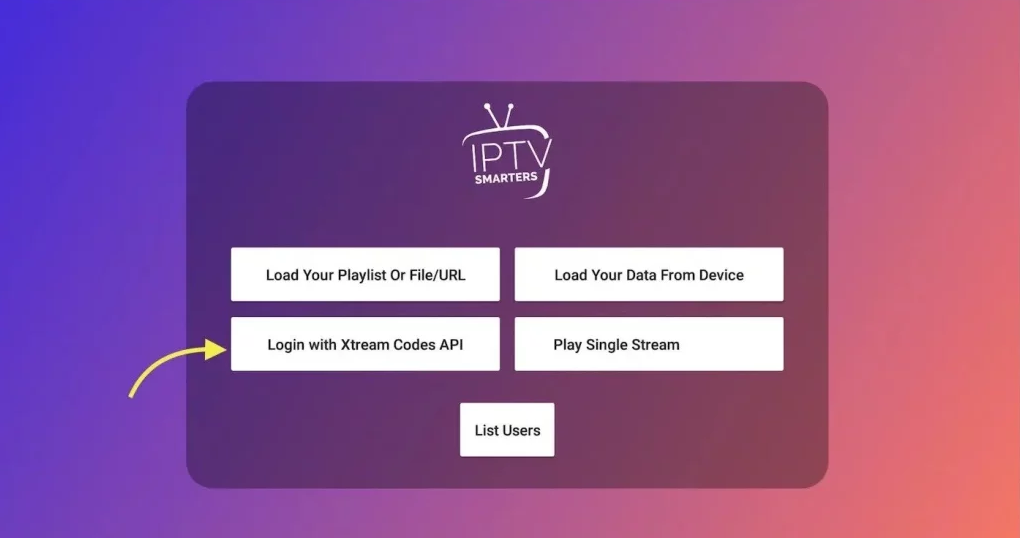
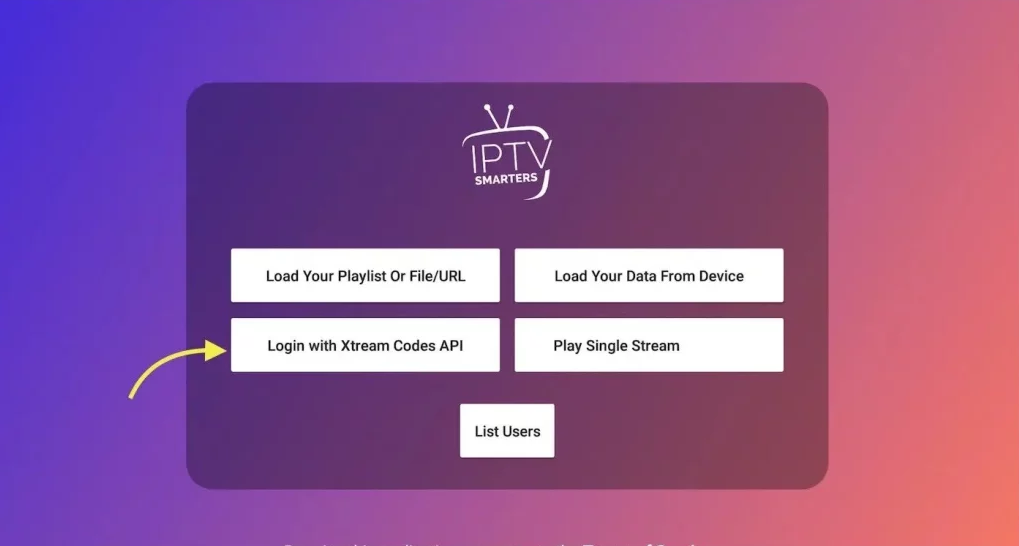
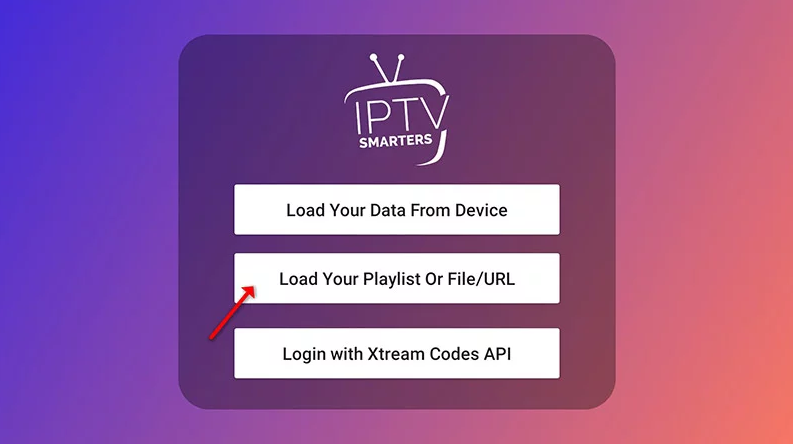
3- Open IPTV Smarters PRO and click Login with Xtream Codes API
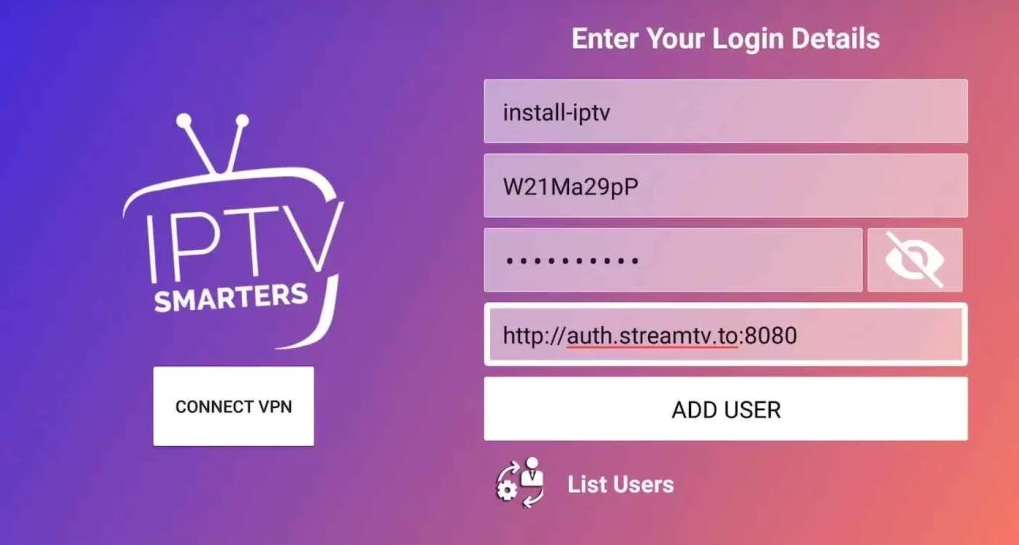
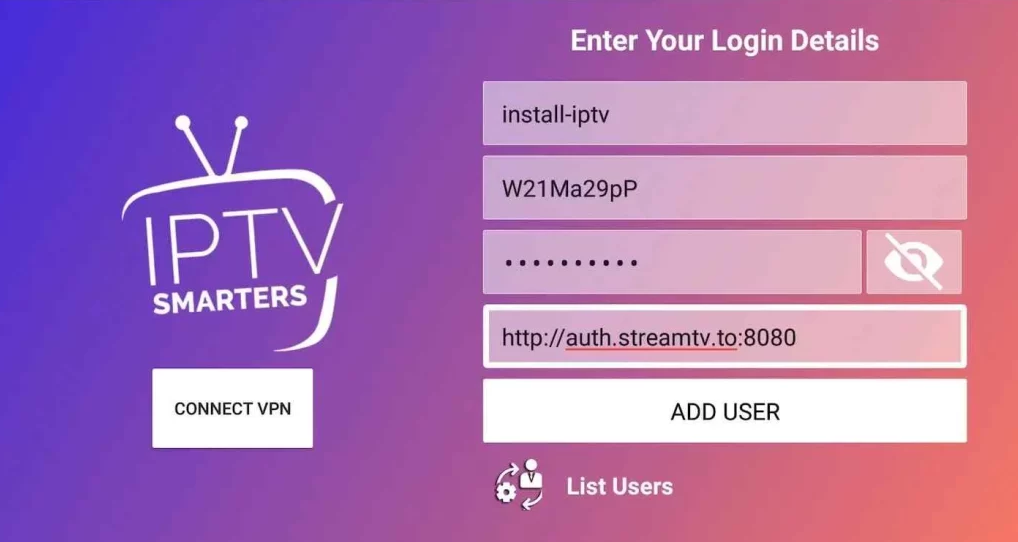
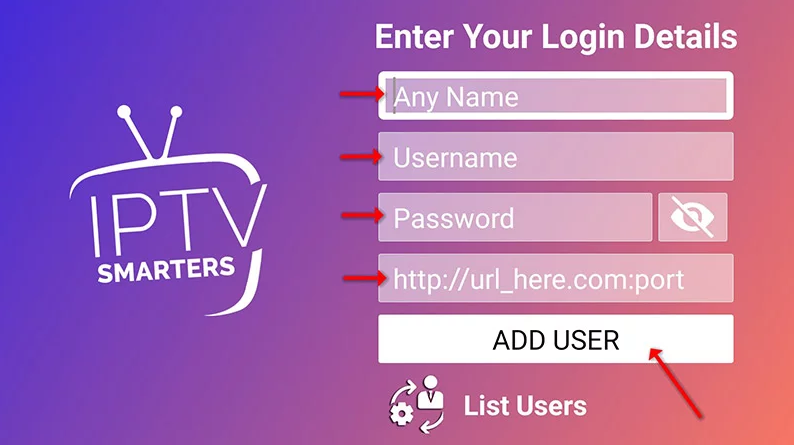
4- Enter Xtream connection details For the first field Choose a name for your list (it can be any name ), Then enter your username, password and URL we provided to you and click ADD USER
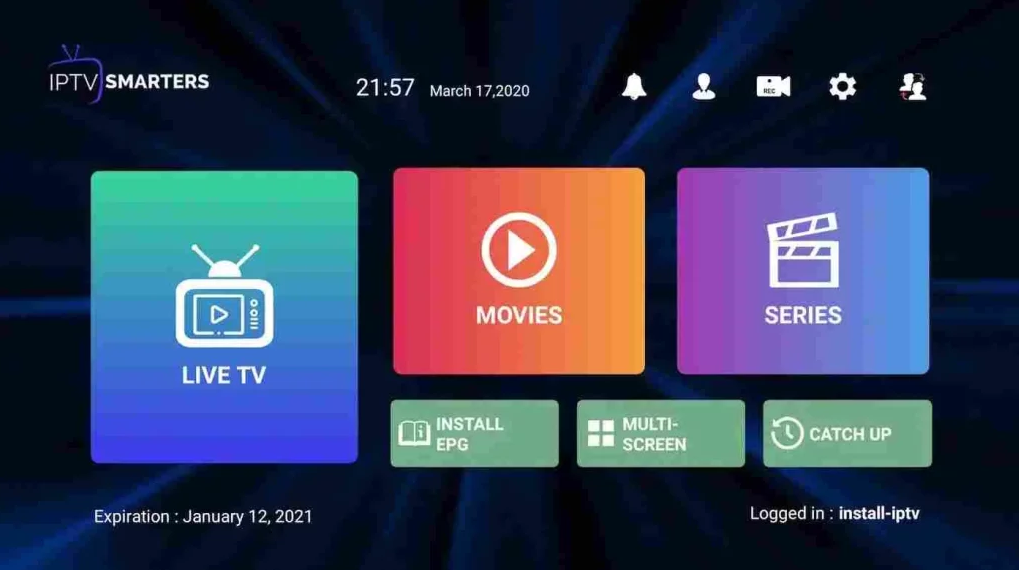
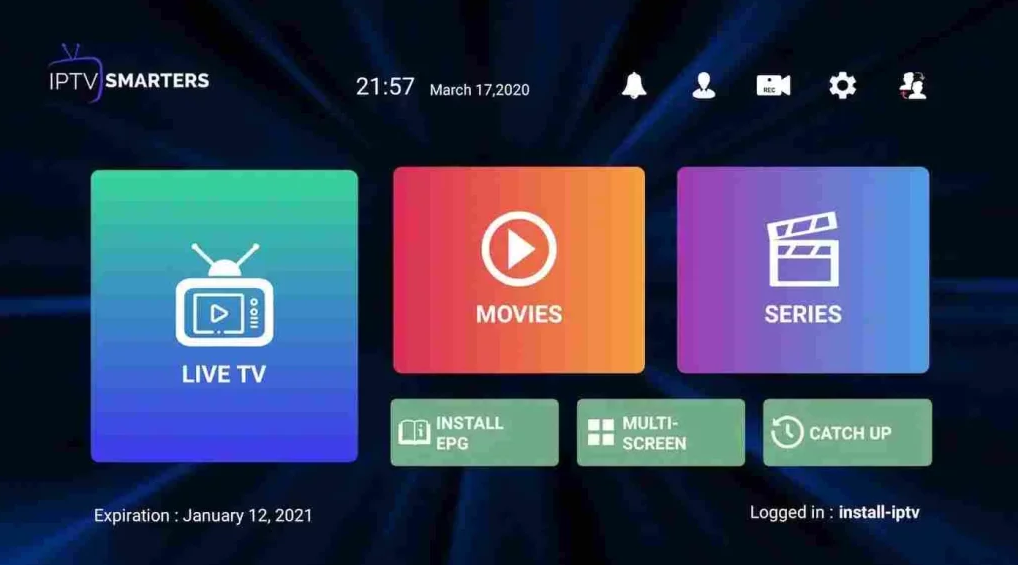
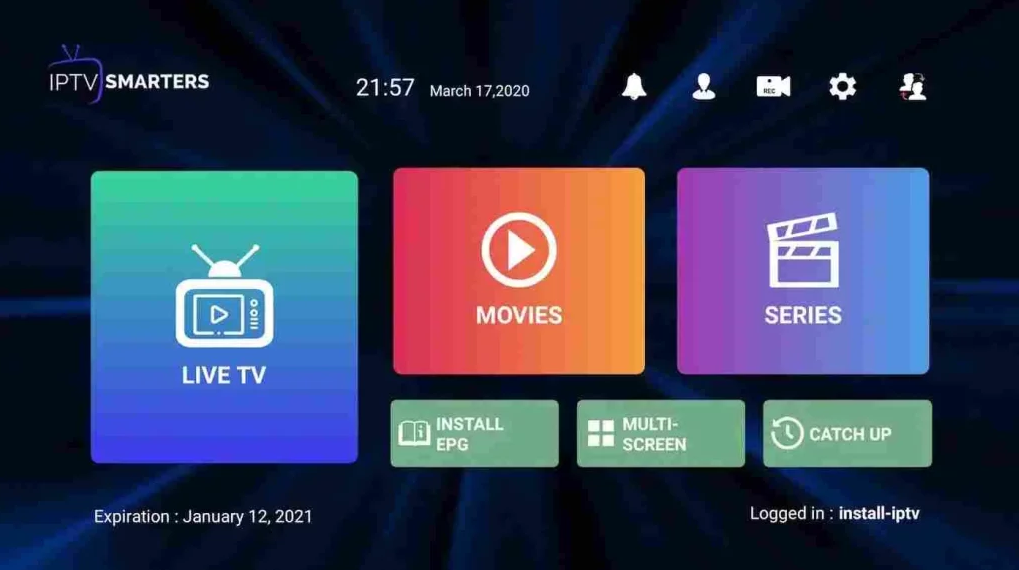
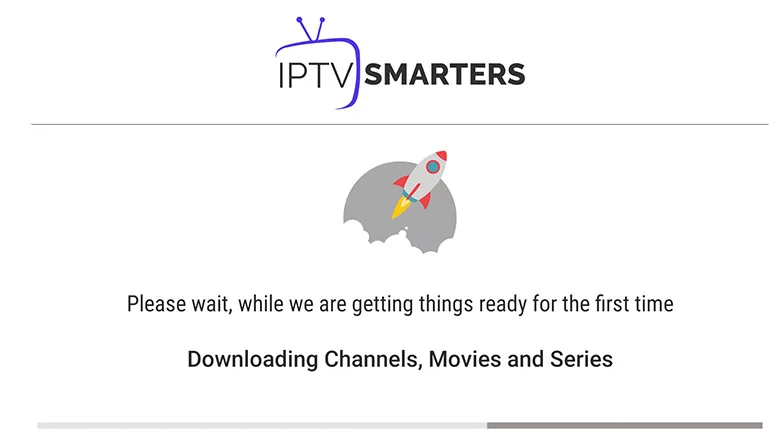
5- It will start downloading channels and VOD about 10 seconds then you will be logged in and you will see this page
Download GSE smart IPTV (APP 2)
GSE Smart IPTV app available for iPhone,iPad, tvOS, and Mac OS X. You can download it from the App store. Download for MAC OS X: apps.apple.com
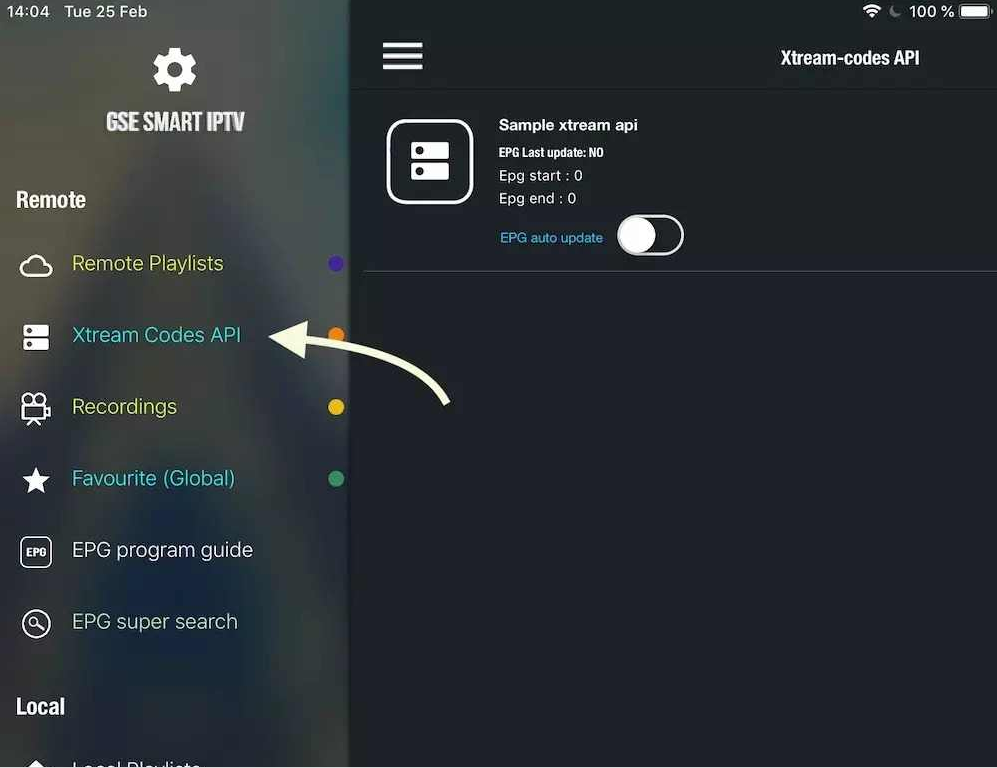
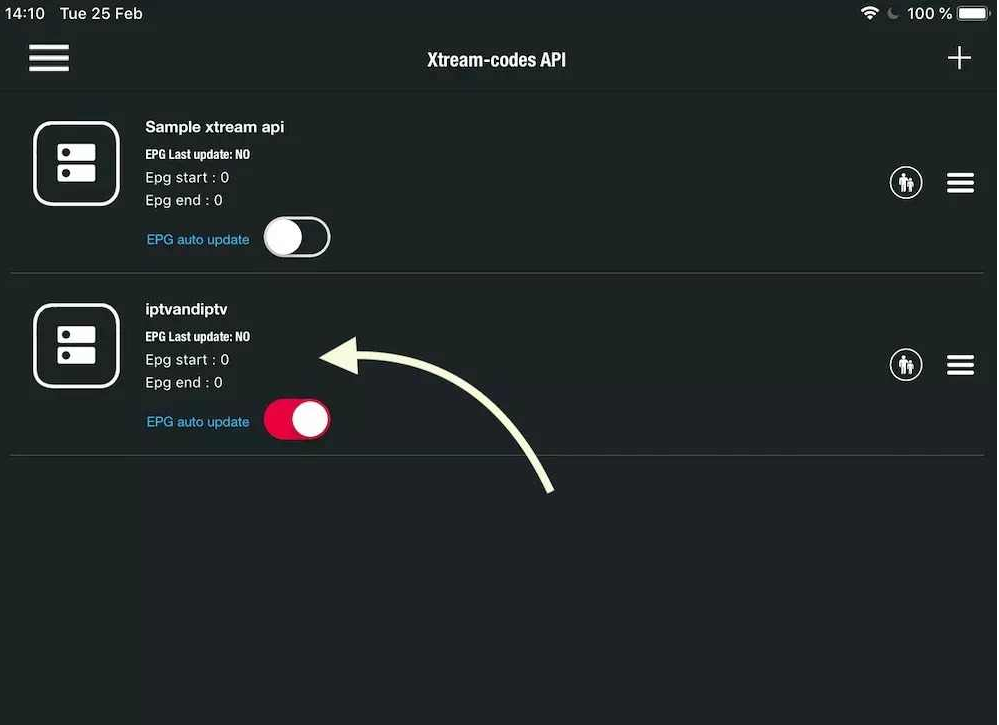
1- Navigate to XTREAM CODES API
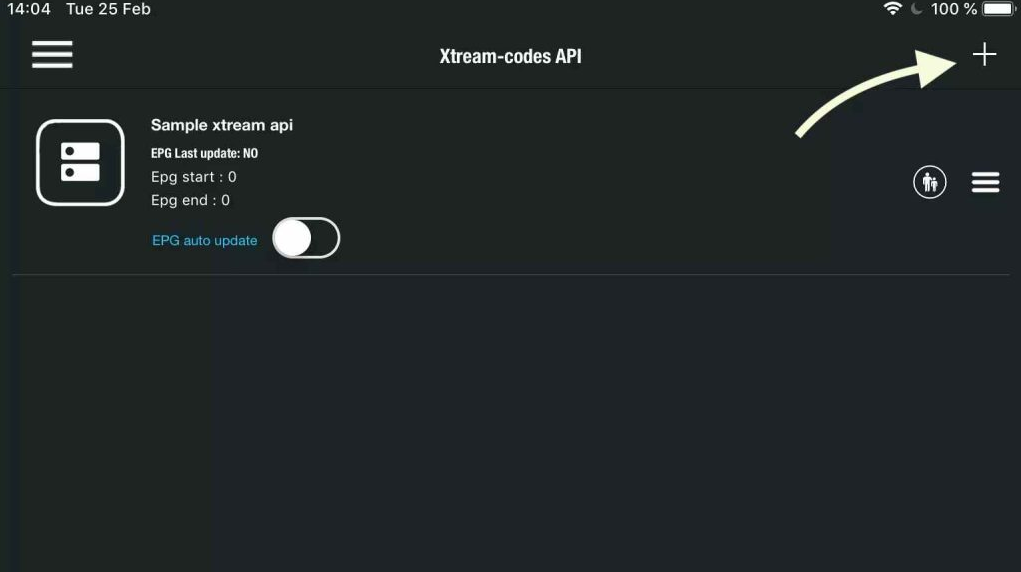
2- Press + icon to add new XTREAM CODES list
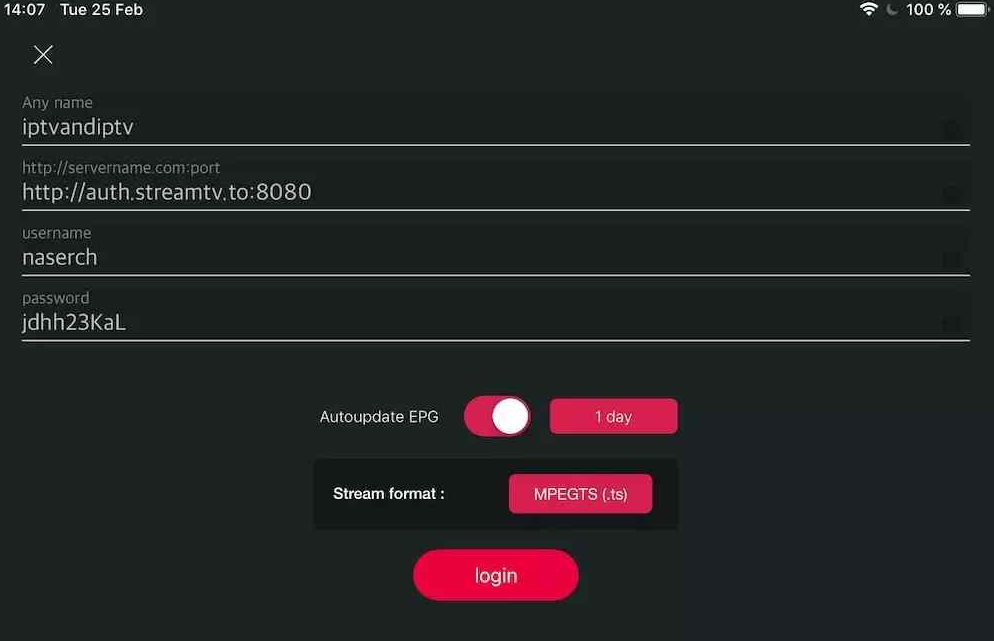
3- Enter Xtream based details For the first field Choose a name for your list (it can be any name ), Then enter your username, password and URL we provided to you Turn ON Autoupdate EPG and click LOGIN
4- Enter the created list and watch movies and live TV channels
3- Open Smarters Plaer lite and click Login with Xtream Codes API
4- Enter Xtream connection details For the first field Choose a name for your list (it can be any name ), Then enter your username, password and URL we provided to you and click ADD USER
5- It will start downloading channels and VOD about 10 seconds then you will be logged in and you will see this page
Fortunately, Samsung has recently added the IPTV Smarters to their App Stores which means you don’t need to sideload the app now and there is no need for the computer either.
These are the steps that you can follow to get IPTV Smarters on Samsung TV in order to use our service:
Step 1: Press the Smart Hub button from your remote.
Step 2: Search for the IPTV Smarters Pro to install.
Step 3: Log in to the Application with your subscription details.
Set on LG Smart TV
In case you own the LG which is running the LG WebOS then you can easily get the application from their Store directly. Just like Samsung, they have also added the IPTV Smarters officially to their App Store.
Below are the Steps to download IPTV Smarters on your LG in order to use our service:
Step 1: Press the Home button on the remote & Go to LG Content Store.
Step 2: Search for the IPTV Smarters Pro to install.
Step 3: Log in to the Application with your subscription details.
1- Click here to download Smarters PRO then install it.
2- Open IPTV Smarters PRO and click Login with Xtream Codes API
3- Enter Xtream connection details For the first field Choose a name for your list (it can be any name ), Then enter your username, password and URL we provided to you and click ADD USER
4- After about 10 seconds of downloading the channels and VOD, it logs you in and shows this page.
Even though IPTV Smarters is listed on Google Play Store and Apple App Store for Android and iOS mobiles respectively, Amazon Store does not host it. Therefore, if you want it on your FireStick, you will need to sideload it.
To sideload any app on your device, you should have the option Apps from Unknown sources enabled or turned on. So, let’s take care of this part first before we install IPTV Smarters on FireStick:
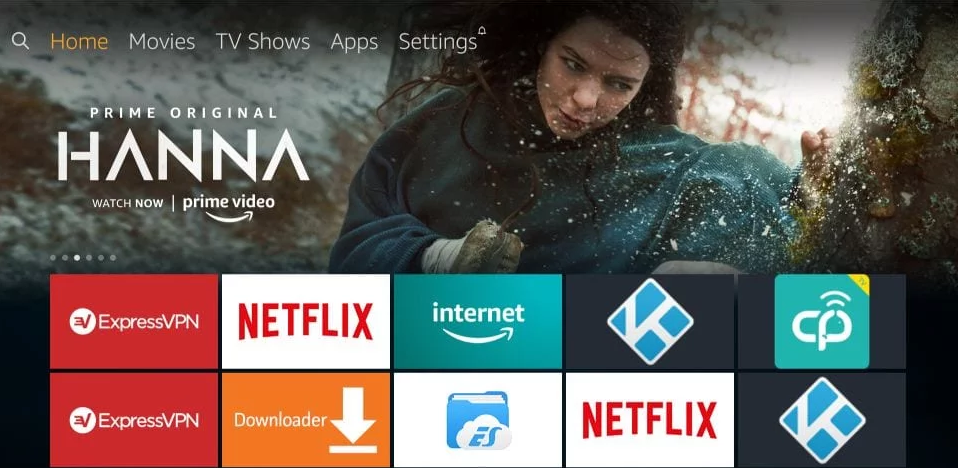
– On the home screen of your FireStick, you will find the menu bar on the top
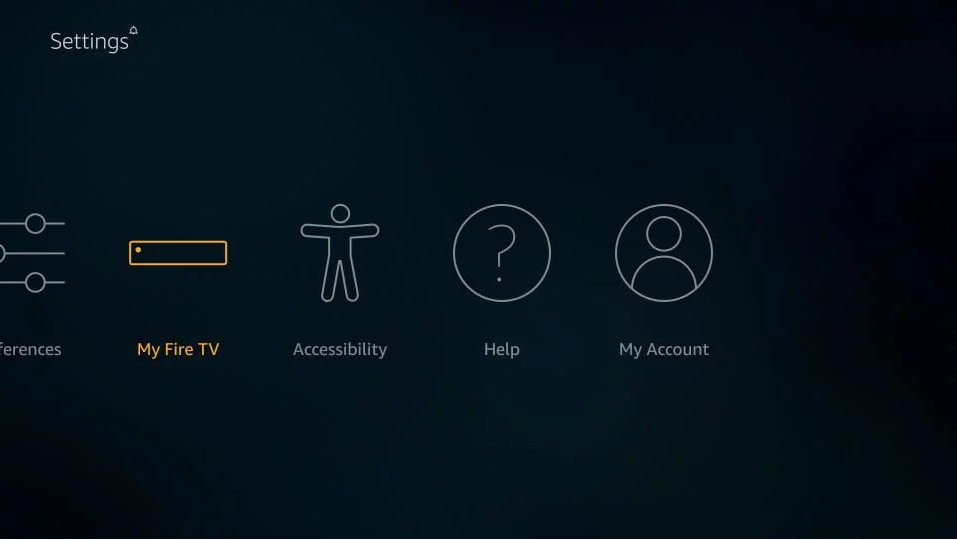
In the menu bar, select Settings
– In Settings, choose the option My Fire TV
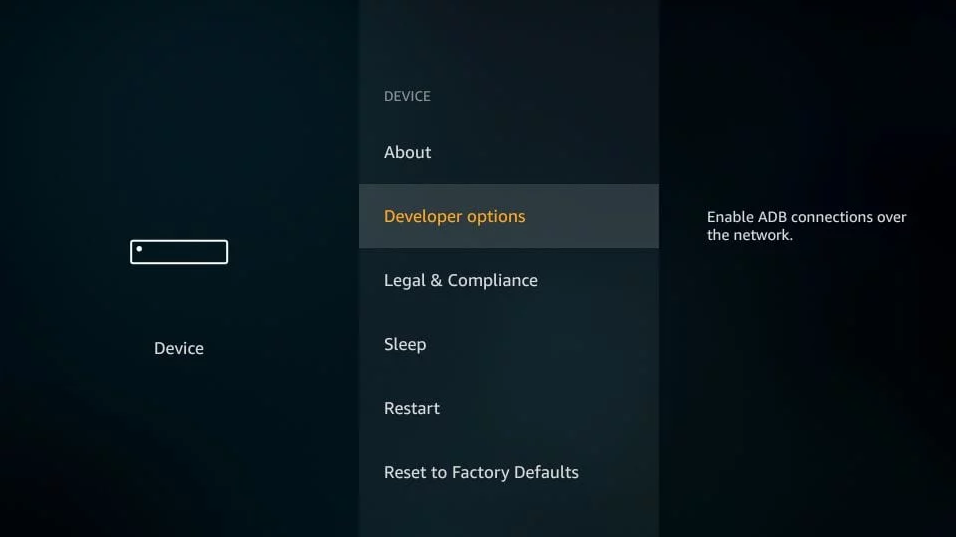
– When the following set of options are displayed on the next screen, click Developer Options
– Now, you need to check whether Apps from Unknown Sources is OFF or ON
Click it once if it is OFF
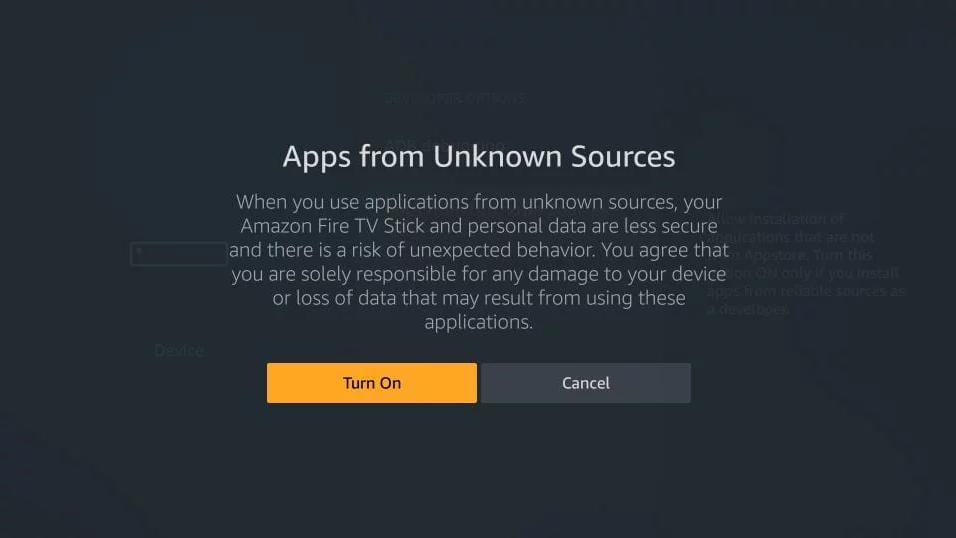
– A quick warning message is displayed
To keep Apps from Unknown Sources switched on, click Turn on
With this, you have configured the FireStick settings to allow the installation of IPTV Smarters and other third-party apps. Follow the steps below:
STEP 1:
We will first install the Downloader app
This app will help you sideload IPTV Smarter on FireStick (because browser downloads are not allowed)
STEP 2:
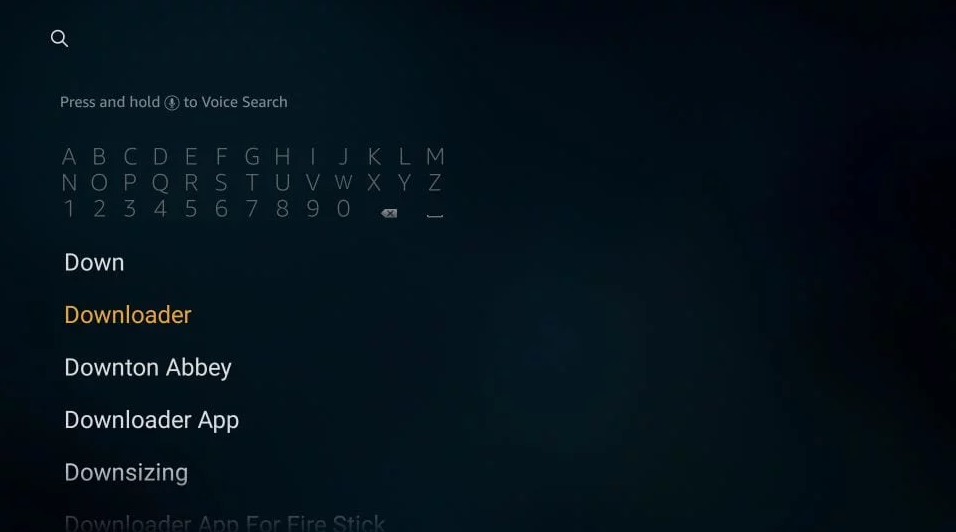
Highlight the Search option on the home screen of FireStick Type the name of the app (which is Downloader) Click the Downloader option when it is displayed in the search results Choose the Downloader icon on the following screen and download and install the app
STEP 3:
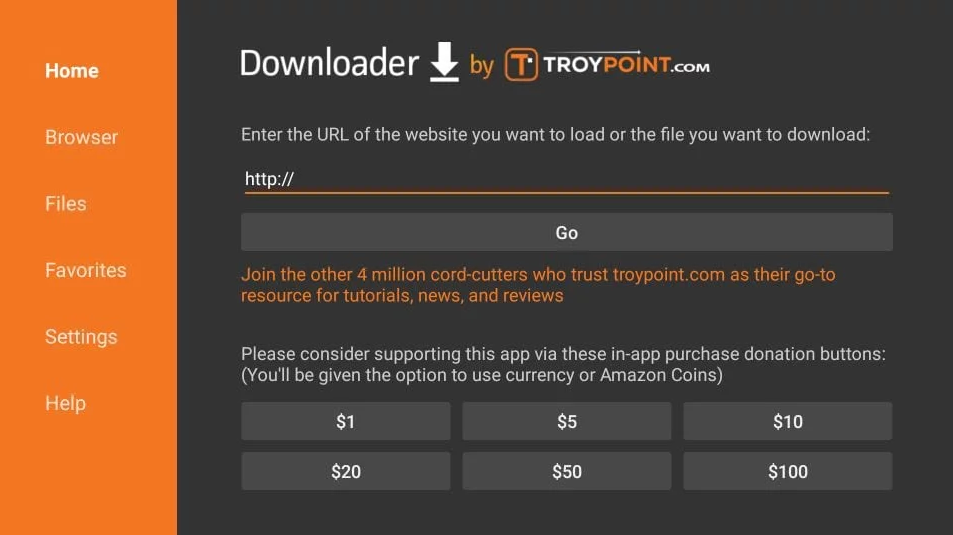
You may now open the Downloader app When you run this app for the first time, a set of prompts will appear. Dismiss them until you see the following screen
On this screen, you need to click the URL textbox on the right side (make sure the Home option in the left menu is selected) where it says ‘http://’
STEP 4:
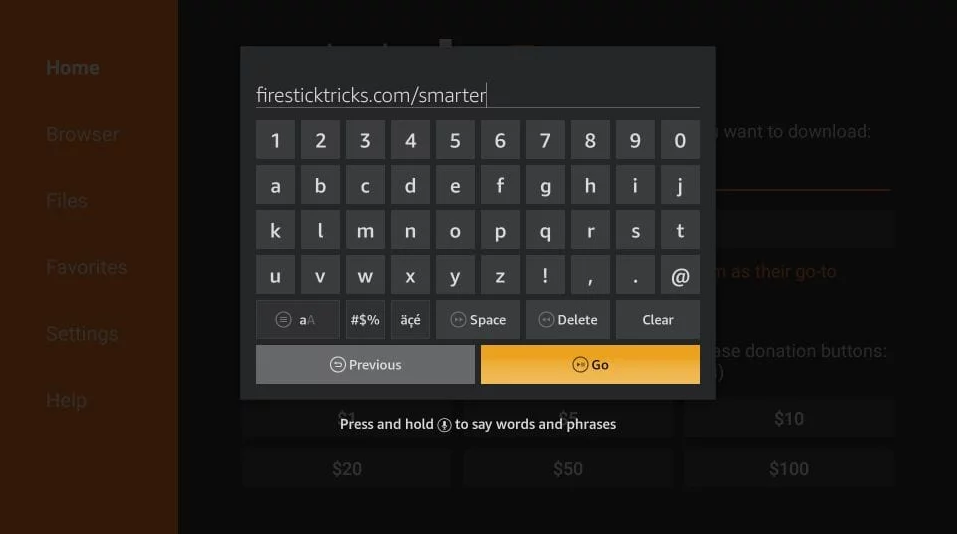
Go ahead and enter the following path on this window: 6578878 or https://www.iptvsmarters.com/iptv-smarters-4.0.6.apk
Click GO
STEP 5:
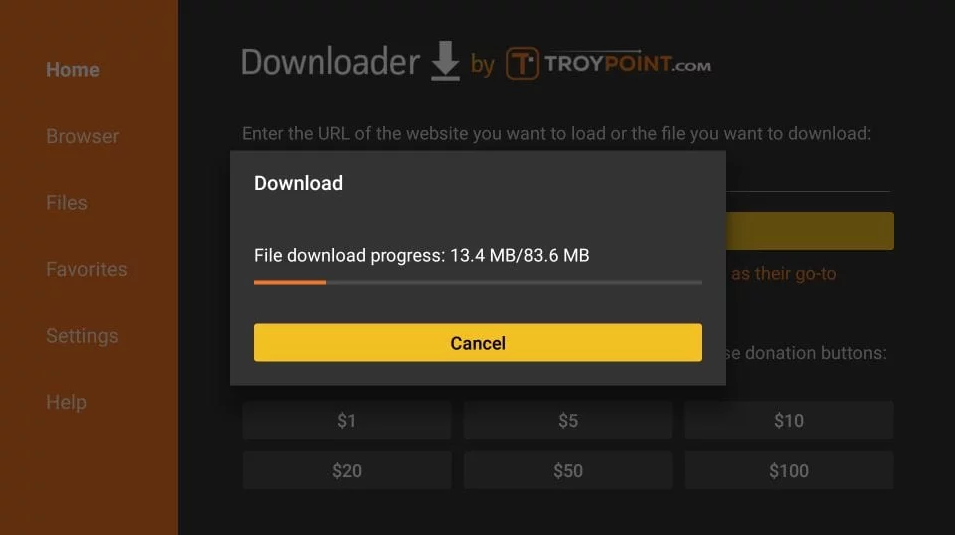
Give it a minute or two until the IPTV Smarter is downloaded onto your FireStick device
STEP 6:
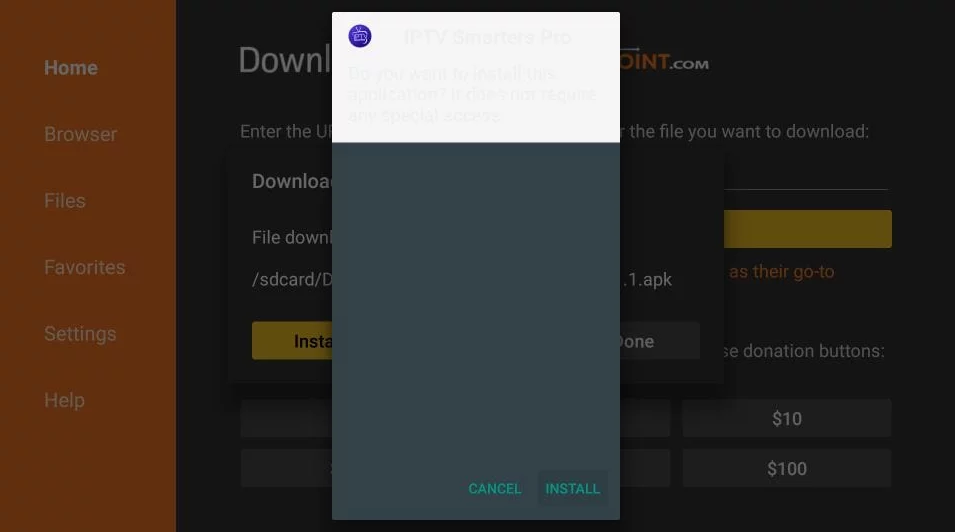
When the download has completed, the Downloader app will run the APK file and the installation will start
Click Install
STEP 7:
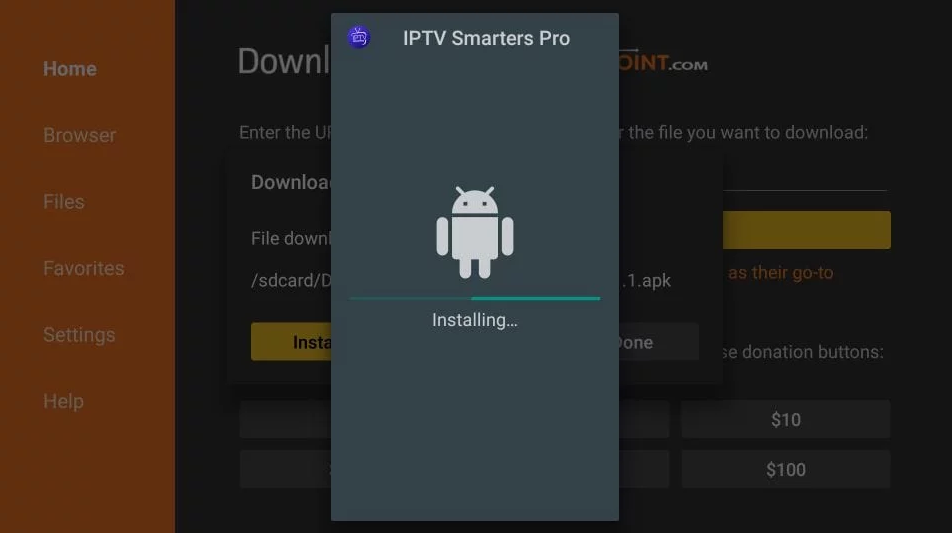
Wait for the installation to finish
STEP 8:
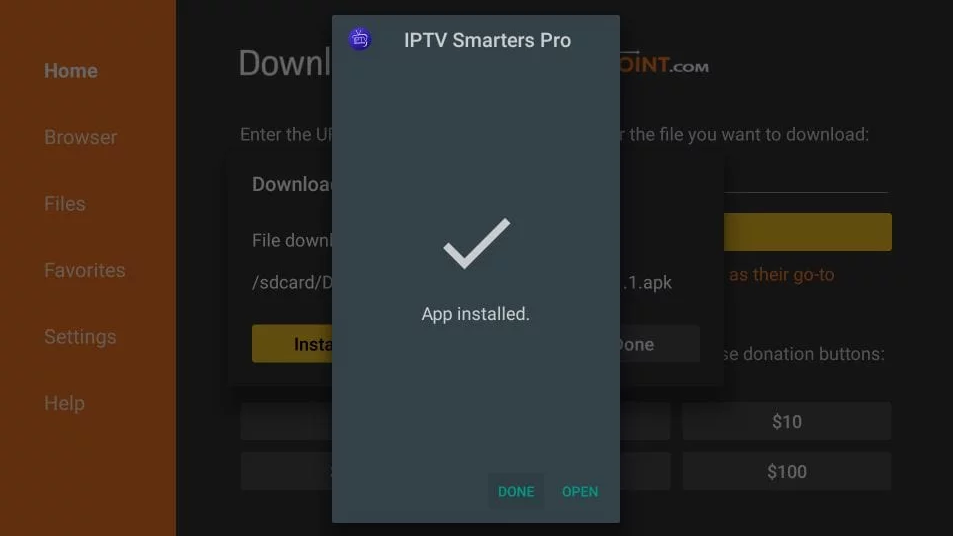
Installation is concluded with the App installed notification
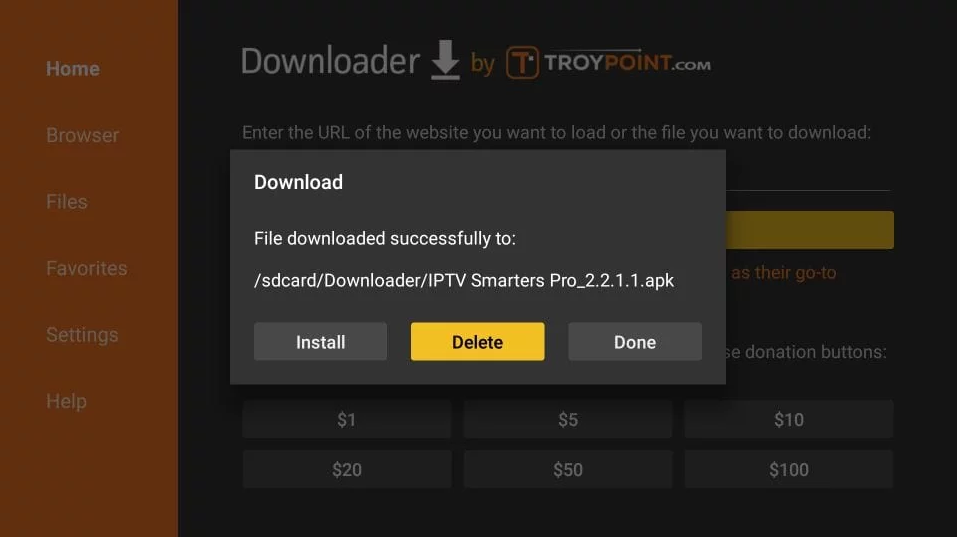
You may now choose to click OPEN and get started with IPTV Smarters
I recommend choosing DONE so that you may first delete the APK file and save some space on the FireStick storage
STEP 9:
If you clicked DONE above, you will be back on the Downloader interface
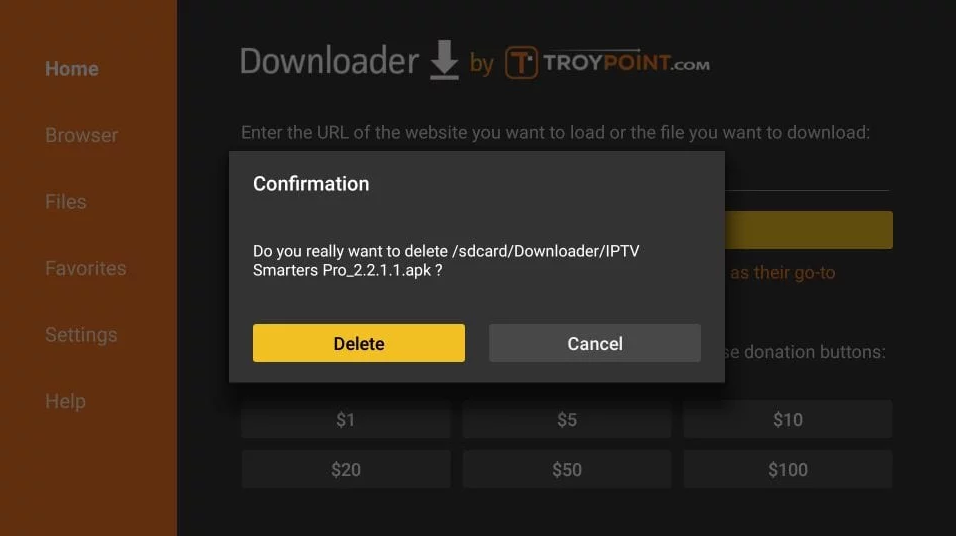
Click Delete
STEP 10:
Again, click Delete
Great! You now have the IPTV Smarters app on FireStick.
When you run the IPTV Smarters app for the first time, Terms of Use will be the first window. Scroll down and click Accept.
You can add IPTV channels to IPTV Smarters in two ways:
Setup via Xtream Codes API.
Setup via Playlist.
Setup IPTV Smarters via Xtream Codes API
We recommend setup via Xtream Codes API because you will have the Catchup feature this way and also do not need to add any EPG URL (it will load automatically).
STEP 1:
Open the app once downloaded and click on “Add user” then click on “Login with Xtream Codes API“.
STEP 2:
In this step, in the first box, select any name you want for example “IPTV Xtream”. On the second and third boxes, enter the “Username” and the “Password” of your M3U line and the server URL which can also be found on your M3U line.
Now Click on “ADD USER” to proceed to the next section.
STEP 3:
Wait some seconds.
STEP 4:
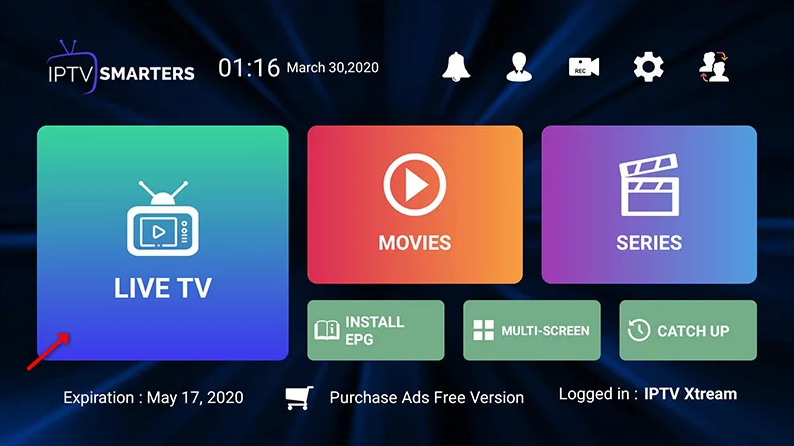
Now click on the “Live TV” icon as depicted in the image via a red arrow.
STEP 5:
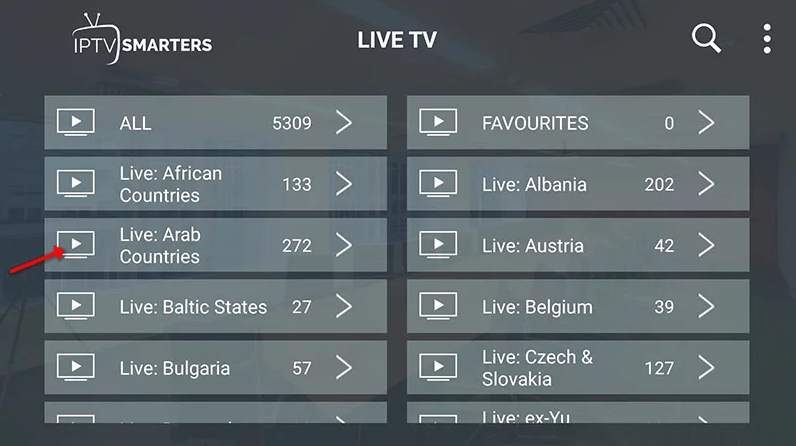
Now you must select the channel group that you want to watch and proceed to the next section.
STEP 6:
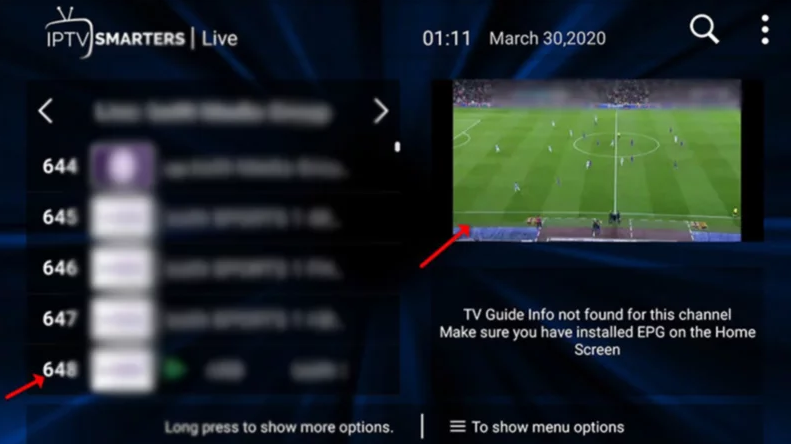
Now you must click on the channel name and then double-click on the small screen to turn into the full screen as the final step.
STEP 7:
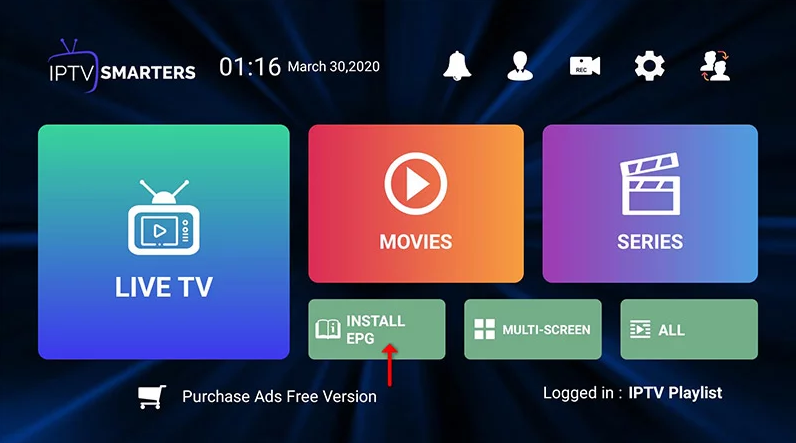
To add EPG no need to add any EPG URL, Just click on “Install EPG“.
Setup IPTV Smarters via Playlist
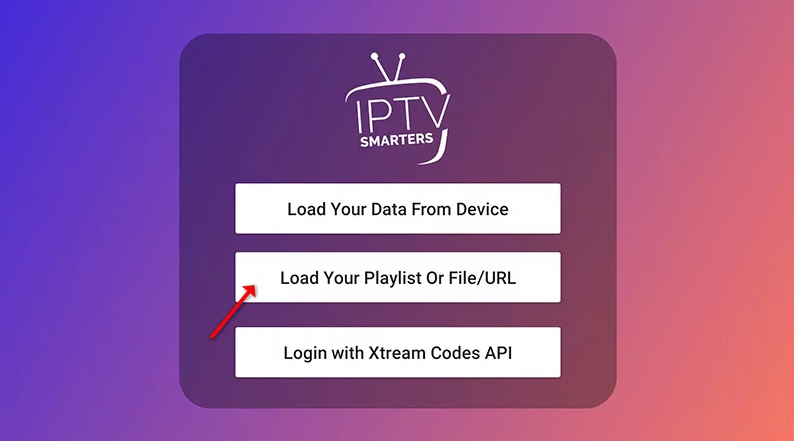
If you don’t have an Xtream Code API, you can use an M3U URL and choose to Load Your Playlist or File URL.
STEP 1:
Open the app once downloaded and click on “Add user” then click on “Login with Playlist“.
STEP 2:
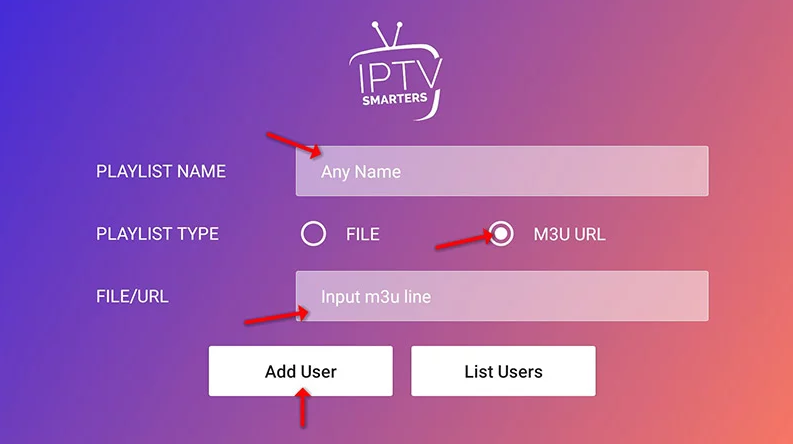
In this step, in the first box, select any name you want for example “IPTV Playlist”. Select “M3U URL” and enter the M3U URL which you get from your IPTV provider.
STEP 3:
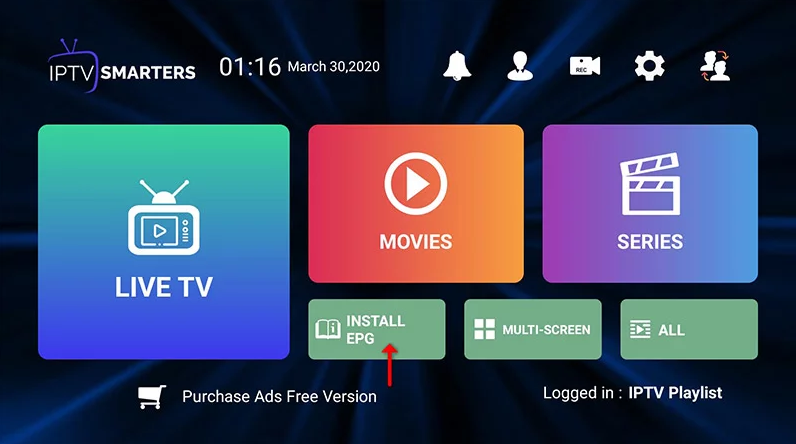
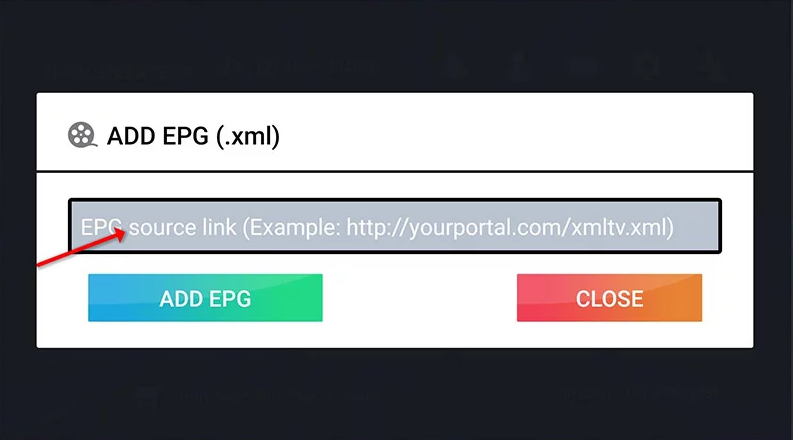
To add EPG click on “Install EPG” and enter the EPG url.
STEP 4:
Now click on the “Live TV” icon, select the channels group then the channel you want to watch.
MAG boxes are some of the most robust streaming media players. IPTV users choose them for their speed, Simplicity, and excellent streaming performance. The user interface is simple and responsive, channel switching is quick and you receive all the features required to get the most out of your IPTV service.
STEP 1:
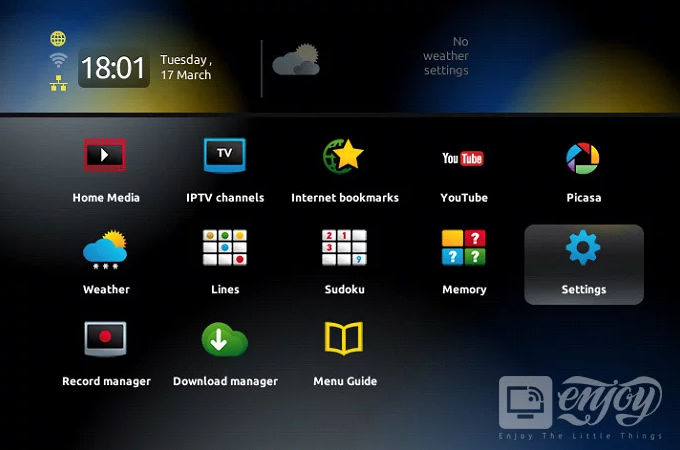
When the box is being loaded the main portal screen appears. After that click on “settings”, press the remote button “SETUP/SET”
STEP 2:
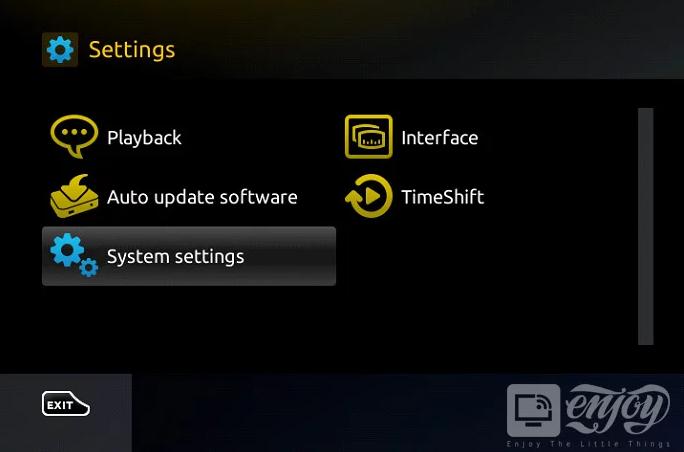
Then press on “System settings” and click on “Servers”.
STEP 3:
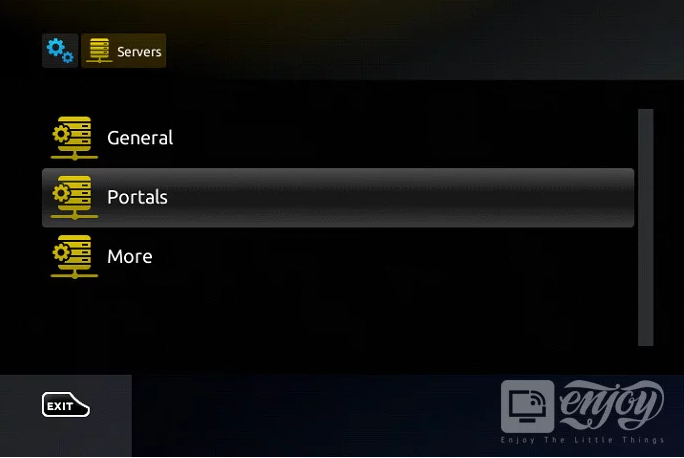
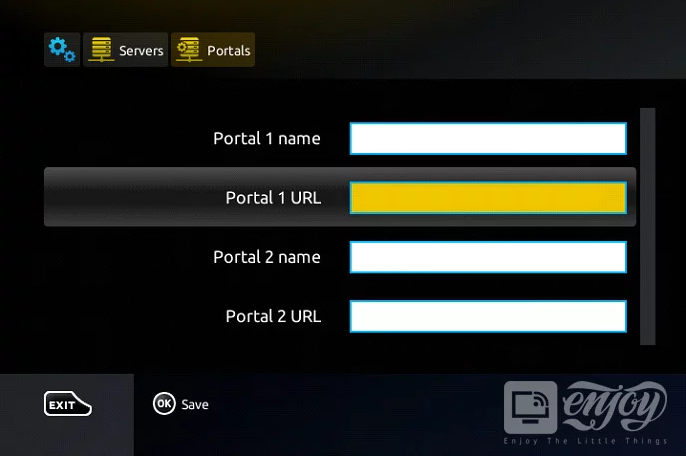
Select “Portals”.
STEP 4:
In the “Portal 1 name” line enter the following ” IPTV “. In the “Portal 1 URL” enter the portal address provided by your IPTV service provider.
STEP 5:
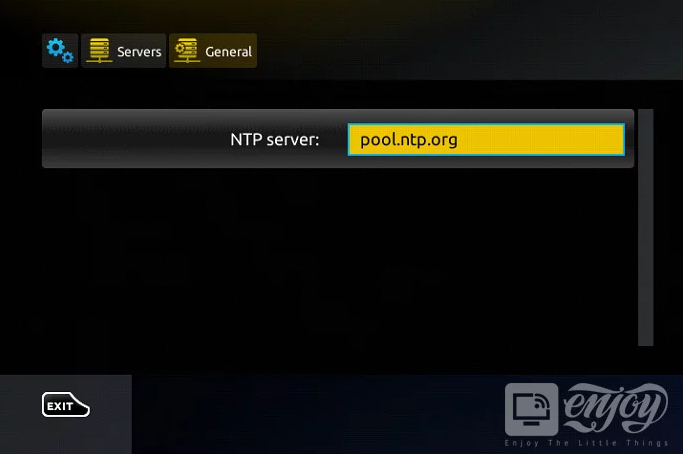
When all the operations listed above are done, then press “OK”. When the settings are being saved click “EXIT” on the remote control and press the option “General”. In the “NTP server,” line enter the following address “pool.ntp.org or us.pool.ntp.org“ for North America.
Press “OK” to save the changes you made.
When all the steps listed above are done press ”EXIT” 2 times on the remote control and restart the portal. Now everything is ready to start watching Live TV.